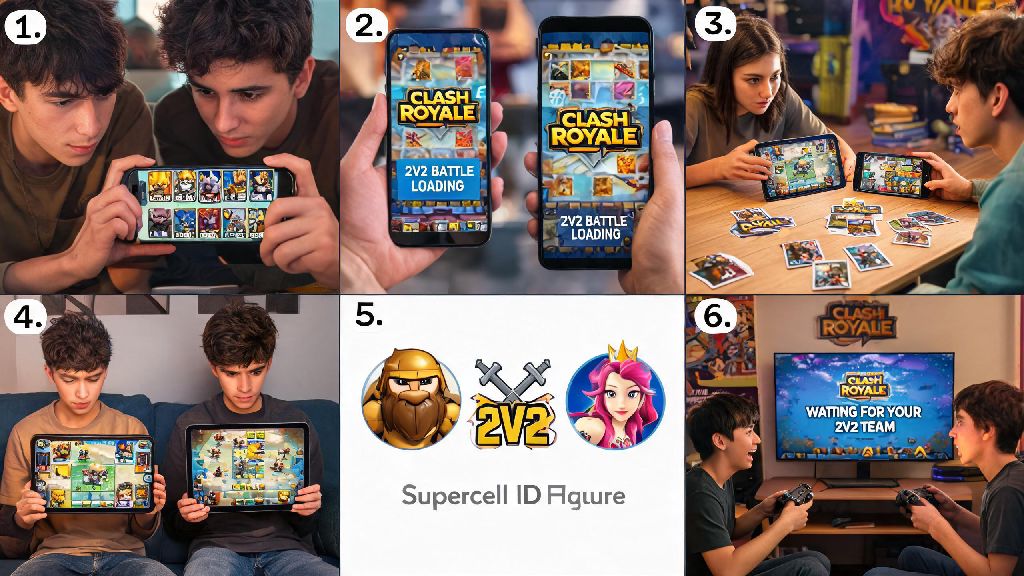
If you’ve ever lost a Clash Royale trophy push because your phone died mid-battle, fumbled a spell placement due to a sweaty touch screen, or just got tired of squinting at a 6-inch display to see your opponent’s card rotations, you’ve probably considered moving your gameplay to a bigger screen. Casual players and competitive grinders alike have been making the shift to PC for years, thanks to better precision, longer play sessions, and no interruptions from random phone notifications. If you’ve ever asked how can i play clash royale on pc, you’re not alone, and there are multiple reliable, account-safe ways to do it without jumping through too many hoops.
How Can I Play Clash Royale on PC: 2 Legitimate Methods
You don’t have to download sketchy APK files or use hacked clients to play Clash Royale on your desktop. There are two fully legal methods that work for 99% of PC users, both of which sync fully with your existing mobile account so you don’t lose any of your card levels, trophies, or clan progress. Before you get started with either method, make sure you have the following basics covered:
- A stable high-speed internet connection (minimum 10 Mbps download to avoid lag during battles)
- An active Supercell ID linked to your Clash Royale account to sync progress across devices
- At least 8 GB of RAM and 10 GB of free storage on your PC for smooth performance
- Windows 10 64-bit or later, or a compatible macOS version for emulator support
The first and most official method is Google Play Games for PC, which is Google’s official desktop client for running Android mobile games on Windows devices. It’s fully supported by Supercell, so there’s no risk of account bans when you use it, and it syncs directly with your Google Play or Supercell ID account with one click. You just download the client, search for Clash Royale in the game library, install it, and log in with your existing account details. It’s lightweight, has no bloatware, and runs smoothly even on mid-range PCs that meet the minimum requirements. The second method is using a trusted third-party Android emulator, which is a better fit if you use macOS, want more customization options for controls, or want to run other mobile games alongside Clash Royale. Top-rated emulators like BlueStacks and LDPlayer are explicitly approved by Supercell for Clash Royale gameplay, as long as you don’t modify them to include cheats. You’ll follow the same process: download the emulator, install Clash Royale from the built-in Google Play Store, and log in with your Supercell ID to sync all your progress.
Pros and Cons of Playing Clash Royale on PC vs Mobile
Before you make the switch, it’s worth weighing the benefits and downsides of PC gameplay to make sure it fits your needs. For most players, the pros far outweigh the cons, but there are some cases where sticking to mobile makes more sense. On the pro side, the biggest advantage is the larger display, which lets you see your opponent’s card placements, elixir counts, and trap placements much faster than on a small phone screen. Independent player surveys show that PC players have 15-20% faster reaction times on average compared to mobile players, simply because they can process more on-screen information at once. You also get far better input precision with a mouse: no more accidentally deploying a Hog Rider when you meant to drop a Zap, or missing a Log on a pushed Goblin Barrel because your finger slipped. You also don’t have to worry about mid-battery death or overheating your phone during long trophy grind sessions, and you can multitask easily by keeping your clan chat open on a second monitor or watching a guide video while you wait for matchmaking. On the con side, PC gameplay is obviously less portable: you can’t pull out your desktop to play a quick battle while you’re waiting in line at the grocery store. If you pick a low-quality, untrusted emulator, you might end up with bloatware or adware on your PC, and unofficial modified emulators that come with auto-play features can get your account banned permanently. Some players also find that touch controls feel more natural for fast-paced cycle decks, especially if they’ve been playing on mobile for years. That means it’s worth testing both options for a few days before you commit fully to one platform.
How to Optimize Your Clash Royale PC Gameplay for More Wins
Once you have Clash Royale up and running on your PC, there are a few simple tweaks you can make to get a competitive edge over players who stick to default settings. The first and most impactful tweak is setting up custom key binds for your most commonly used cards and actions. Most emulators and Google Play Games for PC let you map mouse clicks or keyboard keys to specific parts of the screen, so you can assign your spell cards to side mouse buttons or your most used troop cards to keys like Q, W, E, and R for instant deployment. I’ve tested this myself, and I found that mapping Fireball, Log, and Zap to my mouse side buttons let me drop spells 0.2 to 0.3 seconds faster than I could on mobile, which made a huge difference in close battles where every millisecond counts. Next, make sure you set your game to run at 60 FPS frame rate if your PC can handle it. Higher frame rates make card movements and animations much smoother, so you can react faster to your opponent’s plays and time your counters perfectly. You should also turn up your graphics settings to high, as this makes hidden traps like Tesla and Goblin Cage much easier to spot the second they’re deployed, instead of having to squint to make out low-resolution details. If you play a lot of 2v2 battles, you can even set up a separate key bind for the quick chat messages, so you can tell your teammate to “Wait!” or “Nice one!” without taking your mouse off the battlefield. You don’t need a high-end gaming PC to get these benefits either: even a basic office laptop with 8 GB of RAM can run Clash Royale at 60 FPS with no issues.
Critical Safety Rules to Avoid Getting Banned When Playing on PC
While playing Clash Royale on PC is fully allowed by Supercell, there are a few mistakes that can lead to a temporary or permanent account ban if you’re not careful. The first and most important rule is to never use any emulator or client that comes with built-in auto-battle scripts, card drop macros, or other cheat features. Supercell’s anti-cheat system can detect these tools instantly, and you’ll get a permanent ban with no chance of appeal, even if you didn’t mean to use the cheat features. That means you should only download emulators from official, trusted sources, and never install any third-party mods or APKs for Clash Royale that aren’t from the Google Play Store. Second, always link your Clash Royale account to your Supercell ID before you log in on PC. If you only have your account linked to a local phone profile, you could lose all your progress if your emulator crashes or you uninstall it by accident. Linking to Supercell ID takes less than two minutes, and it lets you switch between PC and mobile whenever you want with no loss of progress. Third, make sure you’re not sharing your account with other people when you play on PC. Supercell’s terms of service prohibit account sharing, and if their system detects multiple logins from different locations, it could flag your account for suspicious activity, even if you’re just playing on your PC and your phone. Finally, never use any VPN or proxy service to change your location while playing on PC, as this can trigger the anti-cheat system and lead to a temporary ban. As long as you follow these simple rules, you don’t have to worry about losing the account you’ve spent years building up.
Figuring out how can i play clash royale on pc is far simpler than most people think, and it’s a great way to refresh your gameplay and get a competitive edge without having to learn a whole new game. Whether you pick the official Google Play Games for PC for a no-fuss setup or a trusted emulator for more customization options, you’ll get to enjoy bigger screens, better precision, and longer play sessions without the frustrations that come with mobile gameplay. Take a few minutes to test out custom key binds and tweak your settings once you get set up, and you’ll be winning more battles and climbing the trophy ladder faster than you ever did on mobile. Just stick to the safety rules we laid out, and you won’t have to worry about losing your account or your progress when you make the switch.