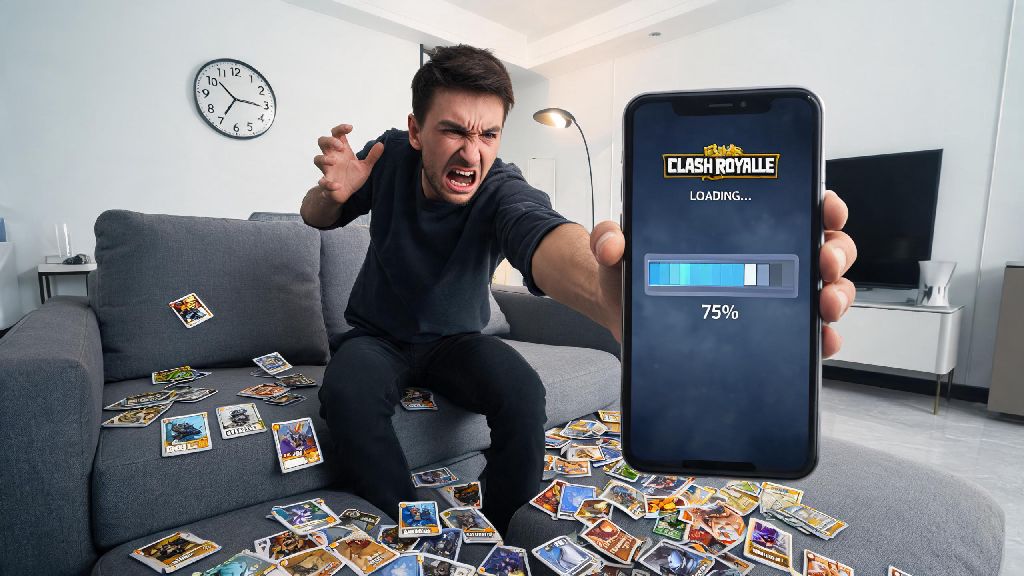
If you’ve ever tapped the Clash Royale icon on your phone, waited through the opening animation, and watched the progress bar freeze completely, you know exactly how frustrating that feeling is. I’ve run into this exact issue myself right before a clan war match, so I know how annoying it is when you’re on a tight schedule to get your attacks in. A huge number of players reach out every week asking why is my clash royale stuck at 75, and it’s almost never a sign of a broken game or lost account data. Most of the time, the fix is simple, takes less than five minutes, and doesn’t require you to delete any of your saved progress or in-game purchases. We’ve pulled together all the most common causes and verified fixes from long-time Clash Royale players and support teams to get you back to battling as fast as possible.
Common Reasons Why Is My Clash Royale Stuck at 75
The 75% loading mark is a specific point in Clash Royale’s boot sequence where it switches from loading local app files to syncing your account data with Supercell’s remote servers. That means the freeze can be caused by issues on your device, your internet connection, or even Supercell’s end. We’ve rounded up the most frequent culprits below:
Most of these issues are trivial to fix, and you don’t need any technical knowledge to work through them. We recommend starting with the simplest checks first before moving to more involved fixes, to save yourself time and unnecessary hassle.
Quick First Steps to Fix the 75% Freeze
First, don’t panic and delete the app right away, that’s a common mistake that can make you lose local progress if you haven’t synced to Supercell ID. Start with the simplest checks first: toggle your internet connection off and back on, or switch from Wi-Fi to mobile data to rule out connectivity issues. Next, close the app completely, clear it from your recent apps tray, and restart your device to clear temporary background processes that might be interfering. A lot of the time, this is all you need to get the game loading again.
If you’ve tried those basic steps and the game still freezes, you can check if your device has enough free storage. Delete old photos, unused apps, or cached files from other apps to free up at least 1GB of space, then try launching Clash Royale again. A lot of players download mobile game updates from third-party platforms to get early access to new features, but these unofficial sources often host incomplete or modified game files. If you downloaded your version of Clash Royale from a platform other than your official app store, you might want to verify the file integrity, or check trusted mobile game resource sites like YonoAppStore for notes on verified, complete game files that won’t cause loading errors.
Device-Specific Fixes for Persistent Loading Issues
If the basic steps don’t work, you can try device-specific fixes that target common operating system quirks that cause loading failures. These steps are all verified by Supercell support, so you don’t have to worry about losing your progress as long as you follow the instructions carefully.
For Android users, the most effective fix after basic steps is to clear the app’s cached data, not the full app storage. Go to your device settings, find the Clash Royale app, select storage, and tap “clear cache” – this won’t delete any of your saved game data, just the temporary files that might be corrupted. If that doesn’t work, check for pending system updates for your device, as outdated operating systems often conflict with newer game versions. Never delete the app without confirming your Supercell ID is synced, as local save data on older Android devices can be erased permanently if you haven’t linked your account.
For iOS users, you can offload the app instead of deleting it, which keeps all your saved data intact while removing the app’s core files to reinstall fresh. Go to iPhone storage, find Clash Royale, select “offload app”, then reinstall it from the App Store. This fixes almost all file corruption issues without risking your progress. Avoid using VPNs when launching Clash Royale, as server location mismatches can stop the account sync process at the 75% mark, even if your connection is otherwise stable.
When to Contact Supercell Support for the 75% Freeze
If you’ve tried all the steps we’ve listed and your game still freezes at 75%, the issue might be tied to your specific account or a recent in-game purchase that didn’t process correctly. This is a rare scenario, but it happens occasionally after a big update when a small number of accounts run into sync errors.
Before reaching out to support, gather as much information as possible: your Supercell ID tag, the exact time the freeze started, any recent updates or changes you made to your device or account, and screenshots of the loading screen if you can take them. Don’t submit multiple support tickets, as that will push your request further down the queue, and be as specific as possible about the steps you’ve already tried to fix the issue. In most cases, support can resolve account-related loading issues in 24 to 48 hours, and you won’t lose any of your cards, trophies, or in-game purchases. Also, check the official Clash Royale social media accounts first to rule out widespread server outages, as those are usually fixed in a couple of hours without any action needed on your part.
At the end of the day, there’s almost always a simple fix when you’re wondering why is my clash royale stuck at 75, and you rarely have to go through the hassle of reinstalling the whole game or resetting your device. Start with the basic checks first, rule out connectivity or storage issues, and make sure you’re using a verified, unmodified version of the game to avoid corrupted file problems. You’ll be back to climbing trophy ranks, opening chests, and battling with friends in no time at all.