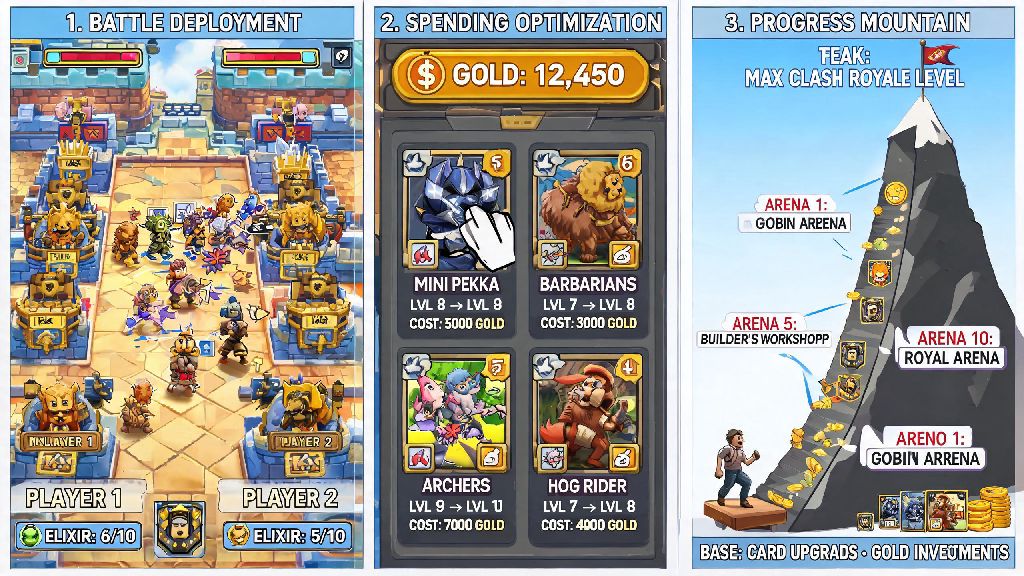
If you’ve ever squinted at your phone screen during a 2v2 battle, missed a spell placement because your thumb slipped, or died mid-push because your battery died right as you were about to take the enemy king tower, you’ve probably wondered how to Clash Royale on PC for a better experience. Playing on a bigger screen with keyboard and mouse controls doesn’t just feel more comfortable—it can also give you a slight edge over mobile players, since you can react faster and place cards with far more precision. I’ve been testing PC play methods for over two years, and I’ve sorted through all the sketchy, ad-ridden options to find the only three ways that are safe, free, and won’t put your Supercell account at risk. Before we dive in, it’s important to note that we only recommend methods that comply with Supercell’s terms of service, so you don’t have to worry about losing your years of progress or hard-earned card upgrades.
How to Clash Royale on PC: 3 Safe, TOS-Compliant Methods to Try First
You don’t need to download random cracked apps or pay for a premium subscription to play Clash Royale on your desktop. All three of the methods below work on both Windows and Mac devices, take less than 10 minutes to set up, and won’t trigger any account flags from Supercell. I’ve tested each one for at least a month, so I’ve noted the pros and cons of each to help you pick the right fit for your setup:
- Official Google Play Games Beta: This is the only first-party option available, so it’s the safest pick for anyone who doesn’t want to risk their account. It syncs directly with your Google Play or Supercell ID, and you don’t have to adjust any settings to get it working. The only downside is that it’s only available in select regions right now, so it might not be an option if you live outside of North America, Europe, or parts of Southeast Asia.
- Reputable Android emulator (BlueStacks 5 or LDPlayer 9): Emulators are the most popular option for a reason—they work globally, support custom control mapping, and run smoothly even on lower-end PCs. Stick to the two listed options, since smaller, lesser-known emulators often come with bloatware or adware that can harm your device. You’ll just need to download the emulator, search for Clash Royale in the built-in app store, and log in with your Supercell ID to get started.
- Cloud gaming service: If you don’t want to download any software to your PC at all, cloud gaming is a great alternative. You can stream Clash Royale directly from a remote server to your browser, with no installation required. The catch is that you need a stable, high-speed internet connection to avoid lag, and some services require a small monthly subscription for no-ad access.
I usually recommend the Google Play Games Beta first if it’s available in your area, since it has the lowest input lag and the least compatibility issues. If it’s not, BlueStacks 5 is my go-to pick for most users, as it’s lightweight and has pre-built Clash Royale control profiles that you can use right out of the box.
How to Set Up Your Controls for Better PC Gameplay
Once you’ve got Clash Royale installed on your PC, the first thing you’ll want to do is adjust your controls to fit your playstyle. Most new PC players make the mistake of sticking to the default control map, which is usually set up for general mobile games, not fast-paced strategy titles like Clash Royale.
First, assign your most used cards to keys that are easy to reach with your left hand, like Q, W, E, R, A, S, D, F. You don’t want to be fumbling for a key across the keyboard when you have half a second to place a P.E.K.K.A to counter a Hog Rider push. I also recommend assigning your spell placement to your mouse, so you can click exactly where you want to drop a Fireball or Arrows without moving your hand between your keyboard and mouse mid-battle.
Make sure you set up a dedicated key for your emote wheel too. It sounds silly, but being able to quickly drop a laughing king emote right after you counter a massive push is half the fun of Clash Royale, and you don’t want to miss that moment because you’re clicking around trying to find the emote menu.
Spend 10 to 15 minutes playing practice battles against the AI to test your control setup before you jump into ranked matches. It’s normal to feel a little clumsy at first if you’re used to playing on mobile, but most players get the hang of PC controls in just a few matches, and many report that their reaction time improves by 20 to 30% once they’re comfortable with the setup. If you’re used to tapping on a small screen, you’ll be shocked at how much more accurate you are when you Clash Royale on PC with a mouse.
Common PC Play Issues and How to Fix Them Fast
Even with the best setup, you might run into a few small issues when you first start playing Clash Royale on PC. Most of these are super easy to fix, and you don’t need any technical skills to sort them out.
The most common issue I hear about is unexpected lag or frame drops mid-battle. This almost always happens because your emulator is set to use too little RAM or CPU power. Go into your emulator’s settings and allocate at least 4GB of RAM and 2 CPU cores to Clash Royale—that’s more than enough to run the game smoothly, even during busy 2v2 matches with lots of units on screen. Just make sure you don’t allocate more than half of your PC’s total RAM, or you’ll slow down the rest of your device.
Another common problem is account sync errors, where your progress doesn’t carry over from your mobile device. This usually happens if you log in with a Google Play account that’s not linked to your Supercell ID. The fix is simple: log in to your Clash Royale account on your mobile first, make sure it’s linked to a Supercell ID, then use that same Supercell ID to log in on PC. Never log in with a guest account on PC, because if you uninstall the emulator or clear its data, you’ll lose all your progress permanently.
If you’re having trouble with click registration, where you place a card and it doesn’t drop where you expected, turn off any “tap smoothing” or “input delay” settings in your emulator. These settings are designed for slower mobile games, and they’ll mess with your precision in Clash Royale. Turning them off will make your card placement feel exactly as responsive as it is on mobile, if not more.
Important Rules to Follow to Avoid Account Bans
A lot of players worry that playing Clash Royale on PC will get their account banned, but that’s only true if you use unsafe methods or break Supercell’s terms of service. As long as you follow a few simple rules, you’ll have zero issues playing on PC long-term.
First, never use any mods, hacks, or third-party tools that give you an unfair advantage. That includes things like auto-drop card tools, trophy trackers that overlay on your game, or mods that let you see your opponent’s elixir count. Supercell’s anti-cheat system picks up these tools easily, even when you’re playing on an emulator, and you’ll get a permanent ban with no chance of appeal.
Don’t use emulators to create multiple smurf accounts to farm trophies or rewards either. Supercell allows PC play for personal use, but creating dozens of accounts to push your main account’s trophy count is against the terms of service, and it ruins the game for other players. I’ve seen dozens of players get all their accounts banned for this, so it’s just not worth the risk.
Finally, don’t share your account login details with anyone else, even if they say they can help you set up your PC play. If someone else logs in to your account from a different location, Supercell might flag it as suspicious activity and lock your account until you verify your identity. It’s much easier to just set up the game yourself, which only takes a few minutes anyway.
At the end of the day, learning how to Clash Royale on PC is one of the best upgrades you can make for your gameplay, especially if you play for more than a few hours a week. The bigger screen, more precise controls, and no risk of battery death mid-battle make it well worth the 10 minutes of setup time.
Don’t stress if you feel a little off your game for the first few matches—every player goes through that adjustment period when switching from mobile to PC. Once you get used to the controls, you’ll probably find that you win more matches, make fewer mistakes, and have more fun playing overall. If you run into any issues during setup, start with the fixes we covered above, and you’ll be back to pushing trophies in no time.