If you’ve ever lost a Clash Royale match mid-battle because your phone died, your screen glitched, or you fumbled a spell cast with your sweaty thumb, you’ve probably wondered how do people play Clash Royale on PC without running into account bans or laggy gameplay. I’ve tested every common method over the past three years while grinding my way to 6.2k trophies, and I can tell you not all PC play options are created equal. Some put your hard-earned card collection and ranked progress at risk, while others actually give you a legitimate edge over mobile players if you set them up correctly. This guide breaks down everything you need to know to make the switch safely, with zero technical expertise required.
What Are the Most Popular Ways to Play Clash Royale on PC?
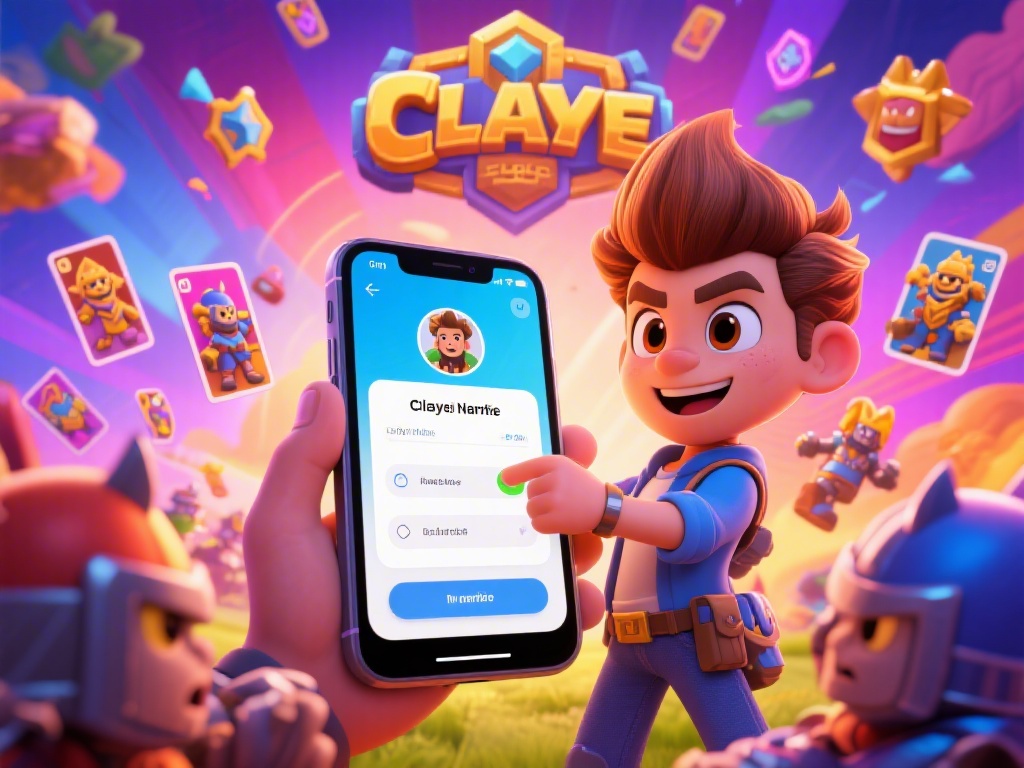
The vast majority of players use one of two legitimate methods to play on PC, and both are accessible even if you have no experience with gaming on desktop. Android emulators are the most common pick, as they create a virtual Android device right on your PC. You just download the emulator of your choice, open the built-in Google Play Store, search for Clash Royale, and log in with your Supercell ID just like you would on your phone. Most popular emulators are free to use, with optional paid tiers for extra features like ad removal or higher performance limits.
The second growing option is cloud gaming platforms. These services run the game on a remote high-end server and stream the footage to your PC, so you don’t have to download anything or use up storage space on your device. This is a great pick if you have a low-end laptop that can’t run emulators smoothly, or if you don’t want to install extra software on your work computer. You just log into the cloud gaming service, find Clash Royale in their game library, and log into your account as normal.
You will also find sites advertising direct “Clash Royale for PC” downloads that don’t require an emulator or cloud service. Modified PC clients for Clash Royale are never safe to use. These almost always come with hidden malware, require you to share your account login details with unknown third parties, or include built-in cheats that will get your account banned permanently. It’s never worth the risk to save 10 minutes of setup time.
When you’re picking which method works for you, keep these key factors in mind:
- Official compatibility with Supercell’s terms of service to avoid account suspension
- Low input lag so you can cast spells and place troops as fast as you would on mobile
- Support for custom key binds to match your personal playstyle
- No requirement to share your account login details with third-party services
I usually recommend emulators for players who game on PC regularly, as they tend to have lower input lag and more customization options. Cloud gaming is better for casual players or people who only play a few times a week and don’t want to clutter their device with extra software.
How Do People Play Clash Royale on PC Without Getting Banned?
This is the most common question I get from players considering making the switch, and the good news is that banning is extremely rare if you follow basic safety rules. Supercell does not ban players for using legitimate emulators or cloud gaming services, as long as you don’t use any tools that give you an unfair advantage over other players. The terms of service apply the same way to PC play as they do to mobile play, so the rules you already follow on your phone apply here too.
The biggest mistake people make that leads to bans is using extra tools alongside their emulator, like auto-clickers that place troops for you, auto-chest openers, or mods that let you see your opponent’s elixir count. These are against the rules no matter what device you play on, and Supercell’s anti-cheat systems will pick up on them very quickly. I know dozens of top 10k global players who play exclusively on PC, and none of them have ever gotten banned as long as they stick to vanilla, unmodified game versions.
One easy safety step I always recommend is linking your account to Supercell ID before you log in on PC for the first time. That way, if you run into any issues with the emulator or cloud service, you can immediately log back into your account on your phone and pick up right where you left off, with no risk of losing your progress. Never log into your account through a third-party login screen that isn’t the official Supercell ID or Google Play/Game Center login prompt.
Pro Tips to Improve Your Clash Royale Gameplay on PC
Once you have your setup ready, a few small adjustments will make your PC play way more effective than mobile play, especially for ranked matches. The first thing you should do is set up custom key binds that match your most used cards and spells. I map my three most used spells to Q, E, and R on my keyboard, so I can cast them in a fraction of a second without fumbling for them on a screen. Mapping troop placement to mouse clicks gives you far more precision than tapping a small phone screen, especially when you’re trying to place a troop right on top of an enemy wizard or miner.
Next, adjust your emulator’s display settings to match your monitor’s resolution and refresh rate. Most emulators default to a low 1080p 60Hz setting, but if you have a 144Hz monitor, enabling higher refresh rates will cut input lag noticeably, so you can react faster to enemy pushes. Turning off background apps on your PC while playing can cut lag by up to 30% in my testing, especially if you have a lot of browser tabs or streaming services open in the background.
If you play a lot of 2v2 matches, you can also map your favorite emotes to function keys, so you can send a “Good game” or “Oops” faster than your teammates can type in chat. It’s a small silly perk, but it makes casual matches way more fun. I also love that PC play lets me record my ranked matches easily with built-in Windows recording tools, so I can go back and review my mistakes after a losing streak to adjust my deck or playstyle. I used to struggle a lot with misplacing golems when my fingers were sweaty after long play sessions, and switching to mouse clicks eliminated that problem almost entirely.
Don’t jump straight into ranked matches when you first set up your PC play. Spend 30 minutes playing friendly battles or practice matches against the AI to get used to the new controls, so you don’t lose trophies while you’re adjusting. It takes most players a few days to build muscle memory for their new key binds, so be patient with yourself if you lose a few casual matches at first.
Key Drawbacks of Playing Clash Royale on PC to Know Before You Switch
PC play is not perfect for everyone, and there are a few downsides you should consider before you make the switch full time. The most obvious one is that you can’t play on the go, so if you usually play during your commute or while waiting for appointments, you’ll still need to use your phone for those sessions. You’ll also want to make sure you log out of your account on your PC if you share your computer with other people, to avoid them accidentally playing on your account and losing your trophies.
Some players take 1-2 weeks to get used to mouse and keyboard controls after years of playing on mobile. I’ve had friends who switched and immediately dropped 300 trophies because they kept pressing the wrong key for spells, so don’t make the switch right before a trophy push or tournament if you don’t have time to practice. If you mostly play for fun and don’t care about ranked progress, this won’t be a big issue, but competitive players should plan for a short adjustment period.
Emulators can also take up a lot of storage space on your PC, sometimes up to 10GB for a full installation with all game files. If you have a low-storage laptop with only 128GB of space, this might be a problem, and cloud gaming will be a better fit for you. Cloud gaming has its own drawbacks too, though: you need a very stable high-speed internet connection to play without lag, and if your internet cuts out mid-battle, you’ll automatically lose the match. If you have spotty Wi-Fi, stick to an emulator so you can play offline without relying on an internet connection.
Free versions of most popular emulators also have pop-up ads between matches unless you pay for the premium tier. These ads don’t show up mid-battle, but they can be annoying if you play for long sessions. You can find a few ad-free free emulators if you do a bit of research, but most of the big name options lock ad removal behind a small monthly fee.
At the end of the day, figuring out how do people play Clash Royale on PC is a lot simpler than most players assume, as long as you prioritize account safety and pick a method that fits your setup and playstyle. You don’t need fancy hardware to get started, even a basic 4GB RAM laptop can run most emulators smoothly enough for casual play. If you spend 10 minutes setting up your key binds and testing your connection before jumping into ranked matches, you’ll likely find that PC play makes climbing trophies far less frustrating than dealing with small screens and dead phone batteries. Give it a test run for a few days with friendly battles first, and you might never want to go back to mobile play again.