If you’ve ever had a perfect 2v2 run with a random teammate, or wanted to challenge your little sibling to a friendly battle to prove who’s the better Clash Royale player, you’ve probably wondered how to add them to your in-game friend list. A lot of newer players struggle with how to send friend request on Clash Royale, especially after the interface update that moved a few core social features to less obvious spots. This guide breaks down every way to send requests, fix common errors, and follow unspoken etiquette so your requests don’t get ignored.
How to Send Friend Request on Clash Royale: 3 Quick Methods
There are three core ways to send friend requests in the game, and each works best for different scenarios. You don’t need any special privileges to send requests, even level 1 players can add friends right after finishing the tutorial.
- Post-battle screen: Send requests directly to teammates or opponents you just played with
- Clan member list: Add existing clanmates with one tap from your clan's roster page
- Player tag search: Use a unique player ID to send requests to people you know outside the game
The post-battle method is the easiest if you’re adding someone you just played with. Right after a match ends, tap the small “i” icon next to the player’s username to pull up their profile, then tap the blue friend icon in the top right corner of their profile card. Make sure you tap the correct username if multiple players have similar display names or emojis, it’s surprisingly easy to send a request to the wrong person by accident.
If you’re trying to add someone from your clan, just head to the “Members” tab on your clan page, tap their name, and hit the same friend icon. This is the fastest way to connect with clanmates you want to private battle with outside of scheduled clan war matches. You don’t need to be a leader or co-leader to add clan members, any member can send requests to others in the same clan.
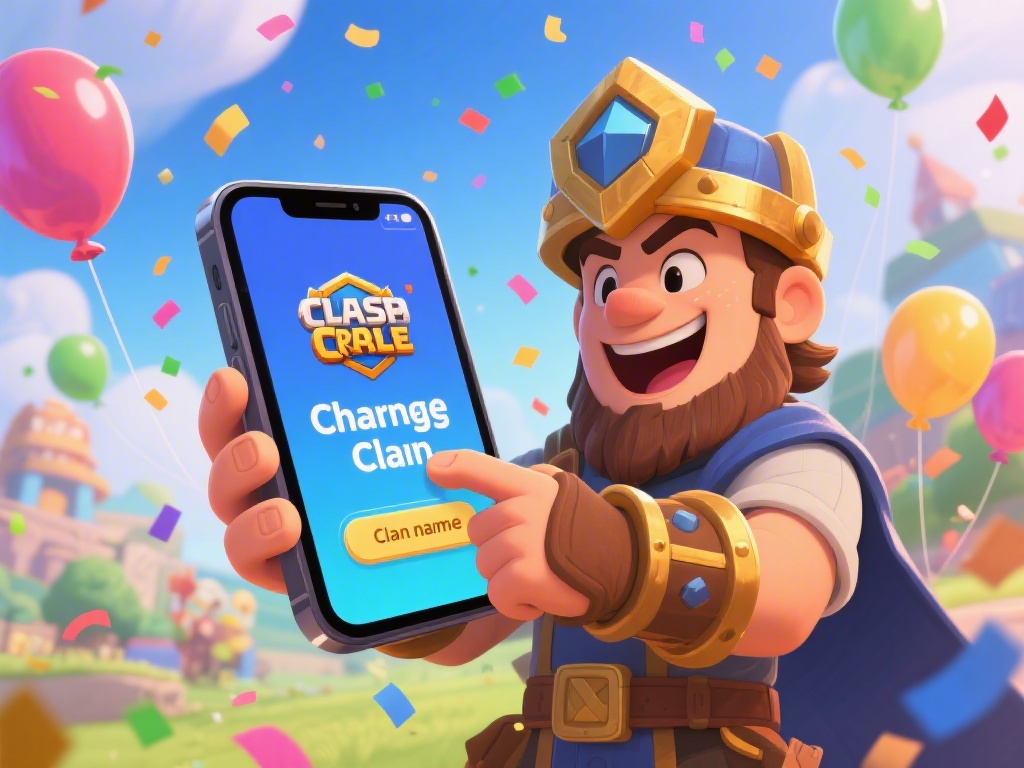
For people you know IRL or from other social platforms, the player tag search is the most reliable method. Every Clash Royale account has a unique tag starting with #, which you can find under your username on your profile page. Just head to the “Friends” tab, tap the magnifying glass search icon, type or paste the tag, and hit send request. The most common mistake when searching by tag is mixing up the number 0 and the letter O, so double check the tag if you get a “player not found” error. Tags are not case-sensitive, so you don’t have to worry about uppercase or lowercase letters.
Common Issues That Stop Friend Requests From Sending
Sometimes you’ll tap the send button and get an error, or your request will never reach the other player. Most of these issues have simple fixes, and you don’t need to contact support to resolve them.
The most common issue is that the other player has disabled friend requests from non-clan members. A lot of higher-level players or popular content creators turn off public requests to avoid getting spammed with hundreds of random requests every day. If you know this person outside the game, ask them to adjust their privacy settings temporarily, or have them send you a request instead.
You also might have hit the game’s friend limit. As of the latest update, you can have a maximum of 100 friends on your list at any time. If you’re at the cap, you’ll need to remove inactive friends who haven’t logged on for months to free up space before you can add new people.
Server glitches are another common culprit, especially right after a new game update drops. If you get a "request failed" error with no explanation, try restarting your app first, 90% of the time that fixes temporary server glitches. If that doesn’t work, check your internet connection, or wait a few hours for the servers to stabilize.
You also can’t send a second request to someone who already declined your first one, or has a pending request from you. If you don’t see the friend icon on their profile, that means you already sent a request that’s waiting for them to accept or decline.
Best Practices for Sending Clash Royale Friend Requests
There’s a little unspoken etiquette around sending friend requests, and following these tips will make it way more likely that the other person accepts your request instead of ignoring or declining it.
If you’re sending a request to a random teammate you played with, send a quick message first if you’re in the same clan, or mention your shared match in your request note if you have that feature enabled. Most people ignore random requests from usernames they don’t recognize, so giving context helps a lot.
Don’t spam repeated requests to someone who declined your first one. That counts as harassment, and they can report you to Supercell, which can lead to a temporary chat ban or even account suspension if you do it repeatedly. If someone declines your request, just move on, don’t take it personally.
Many players add a small unique emoji to their username to make it easier for friends to find them, so ask for that emoji if you’re searching for a friend by display name instead of tag. Display names are not unique, so there might be hundreds of players with the same name as your friend, and the emoji will help you pick the right one.
It’s also a good idea to clean out your friend list every few months. Remove people you haven’t played with in months, so you have space for new teammates and friends you actually interact with. There’s no point in keeping a list full of inactive accounts you’ll never battle with.
What to Do After Sending a Friend Request
Once you send a request, it will stay pending until the other person accepts or declines it. You can see all your pending requests in the “Friends” tab under the “Requests” section. If someone doesn’t respond to your request after a week, you can cancel it to free up your outgoing request slot.
If they accept your request, you unlock a bunch of fun social features. You can invite them to 2v2 matches, send them friendly battle challenges to test new decks, share deck links directly with them, and even invite them to your clan if they’re looking for a new group to play with. I’ve met some of my closest gaming friends through random 2v2 matches, and we still play together every weekend years later.
You can also adjust your own friend request settings if you start getting too many spam requests. Just head to the settings menu, tap “Privacy”, then you can choose to allow requests from everyone, only clan members, or no one at all. A lot of players switch to clan-only requests once they hit a higher trophy level, to avoid getting spammed by lower level players asking for free deck advice or clan invites.
So don’t be afraid to send a request if you have a great game with someone. Most players are happy to add a good teammate to their list, and it makes the game way more fun to play with people you know you have good synergy with.
Knowing how to send friend request on Clash Royale turns a fun solo game into a social experience you can share with friends, family, and random teammates you click with. You don’t need any special tools or upgrades to add people, just follow the simple methods we outlined, avoid common mistakes, and follow basic etiquette to make sure your requests get accepted. Next time you have a perfect 2v2 run with a random, don’t hesitate to send them a request—you might end up with a new long-term battle buddy.