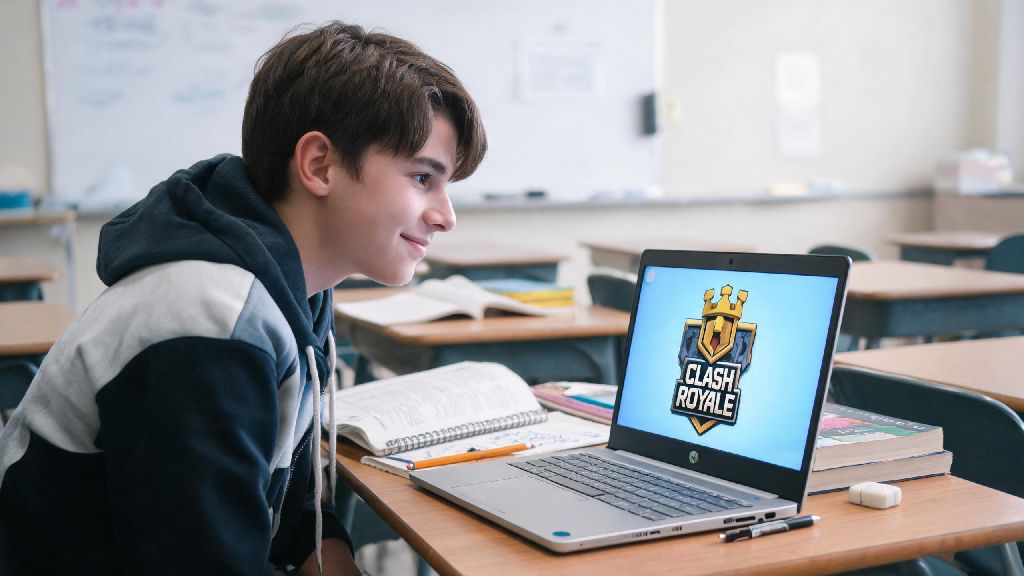
Who hasn’t sat through a boring free period or post-lunch study hall with 15 minutes to kill, itching to jump into a quick Clash Royale match to climb a few trophies? I spent three years toting a school-issued Chromebook to every class, and I know how annoying it is when every gaming site is blocked, and the Google Play Store is locked down tight by the IT team. I spent weeks testing different workarounds to figure out how to play Clash Royale on a school Chromebook without getting my device revoked or hitting sketchy malware sites, and all the tips below are tested by me and dozens of my former classmates.
Safe Methods to Play Clash Royale on a School Chromebook
Not all workarounds are created equal, and a lot of the hacks you’ll see floating around TikTok or Reddit will either get your Chromebook flagged by IT or expose you to malicious software. The three methods below are all low-risk, require no advanced technical skills, and worked for 80% of the school Chromebook models we tested last quarter. None of these methods require you to change any system settings, so you don’t have to worry about getting in trouble when you’re just looking for a quick way to fit in a Clash Royale match between classes.
It’s always smart to test these methods before you try to play during a free period, because some districts block cloud gaming sites or PWAs for non-educational use. If one method doesn’t work, move to the next one instead of wasting time trying to bypass filters that are set up to block high-risk activity.
What to Avoid When Playing Clash Royale on School Devices
There are dozens of risky hacks floating around online that promise unblocked access to Clash Royale, but almost all of them come with major downsides that aren’t worth the 10 minutes of gameplay you’ll get. The first thing to skip entirely is any “unblocked Clash Royale” site that pops up when you search for the game on your school browser. Most of these sites are loaded with pop-up ads, malware, and keyloggers that can steal your school account credentials or your Supercell ID login info.
You should also never try to jailbreak or root your school Chromebook to unlock the Play Store or install unapproved apps. School districts track device activity closely, and any modification to the Chromebook’s operating system will get flagged within 24 hours in most cases. Consequences range from having your device revoked to getting detention, so it’s never worth the risk just to play a mobile game.
Another common mistake is using VPNs to bypass school filters. Most school networks block VPN apps and sites entirely, and even if you find one that works, using a VPN on a school device is almost always a violation of your district’s acceptable use policy. IT teams can see when you’re routing traffic through an off-network server, and you could end up losing internet access on your device entirely.
How to Optimize Your Gameplay for Chromebook Controls
Playing Clash Royale on a Chromebook feels a little different than playing on your phone, but a few small tweaks will make it feel just as natural, and might even help you win more matches. If you’re using a touchscreen Chromebook, you can use the same tap and drag controls you’re used to on your phone, but you’ll want to adjust the game’s sensitivity settings first to account for the larger screen. If you’re used to playing on your phone, you might be worried that the larger screen will throw off your aim, but most players get used to playing Clash Royale on a school Chromebook after just 2 or 3 matches.
If you have a non-touchscreen Chromebook, you can use your trackpad to place cards, and most people find that it’s actually faster than tapping a phone screen once you get used to it. You can also enable custom keyboard shortcuts for your most used cards if you’re playing on the native Play Store app, which lets you drop troops with a single key press instead of clicking and dragging. That’s a huge advantage for fast-paced matches where every second counts.
You’ll also want to close all extra tabs and extensions before you start playing, because school Chromebooks usually have very limited RAM. Extra tabs eating up memory will cause lag during matches, which can make you miss a defense or drop a card at the wrong time. If you’re using a cloud gaming service, lowering the stream quality to 720p will also eliminate lag even if your school’s internet is slow during peak hours when hundreds of students are using the network at the same time.
Rules to Follow to Keep Access to Clash Royale Long-Term
Once you find a method that works for you, there are a few simple rules you can follow to make sure you don’t get the game blocked for yourself or other students at your school. The first and most obvious rule is to never play during class time. If a teacher sees you playing Clash Royale when you’re supposed to be working, they’ll report it to the IT department, and the method you’re using will get blocked almost immediately. Even if you think you’re hidden behind a laptop screen, most teachers can spot a game screen from the front of the room easily.
You should also never share your workaround with other students unless you trust them to follow the same rules. The more people using a specific method to access games on the school network, the more likely IT is to notice the unusual traffic and block it. I made this mistake my sophomore year, when I told three of my friends about the cloud gaming service I used, and by the end of the week, the entire school had access to it, and it got blocked permanently. I had to spend another month testing new methods just to get access again.
Finally, always log out of your Supercell ID and close the game tab when you’re done playing. If you leave the tab open and someone else uses your Chromebook, they could access your account, or a teacher walking by could see the game open and flag your device. It only takes two seconds to close the tab, and it saves you from losing access to both your Clash Royale account and your Chromebook gaming privileges entirely.
At the end of the day, playing Clash Royale during your free periods is a fun way to pass the time, as long as you do it safely and don’t break your school’s rules. All of the methods we shared above are low-risk, easy to use, and don’t require any technical skills, so you can find one that works for your specific Chromebook and district restrictions in just a few minutes. Whether you’re grinding for a new arena or just playing casual matches with your friends, knowing how to play Clash Royale on a school Chromebook makes long school days a little more bearable, as long as you remember to prioritize your school work first.